Technical SEO & Performance | Module 5
By the end of this module, you'll know how to check your site's technical health and fix the issues you can control—like speed, mobile-friendliness, and HTTPS. Some issues will need a developer, and that's normal.
What You'll Actually Be Able to Fix
As a beginner, you can handle:
- Checking your site speed and compressing images
- Making sure your site is mobile-friendly
- Getting HTTPS set up
- Finding and fixing broken links
- Understanding what Core Web Vitals are
You'll likely need developer help for:
- Complex speed optimisations (JavaScript, server response times)
- Advanced Core Web Vitals fixes
- Server configuration issues
- Complex redirect problems
💡 Flag for later: Anything labelled “developer fix” — just note it down for future help.
Step 1: Why Is My Site Slow and How Do I Fix It?
Do this:
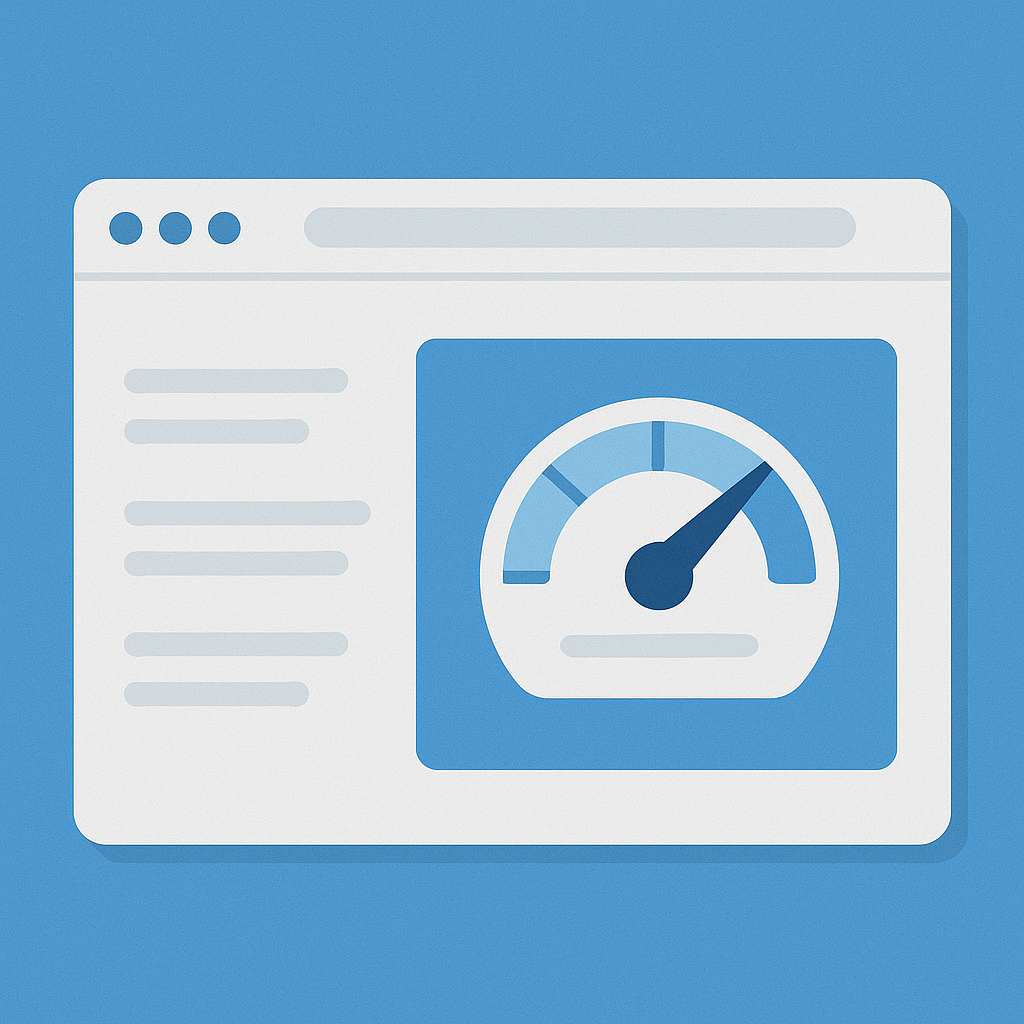
Run your homepage through Google PageSpeed Insights
Enter your homepage URL → click Analyze
What you'll see:
Performance score (0–100)
Core Web Vitals status
List of issues
What beginners can fix:
- Image file sizes – compress before uploading
- Unnecessary images – remove decorative ones
- Large font files – stick to standard web fonts
What needs a developer:
"Reduce JavaScript execution time"
"Minimise main-thread work"
"Reduce server response time"
"Remove unused CSS"
✅ Check this worked: rerun PageSpeed Insights after image compression. Expect a 10–20-point lift.
Why this matters: faster sites rank and convert better.
Step 2: Is My Site Mobile-Friendly?
Do this:
Use Google’s Mobile-Friendly Test
What to look for:
- Text readable without zooming
- Buttons easy to tap
- Content fits the screen
Common fixes:
- Font size ≥16px
- Add space between buttons
- Make images resize for mobile
✅ Check this worked: test shows “Page is mobile-friendly.”
Why this matters: mobile usability is a direct ranking factor.
Step 3: Do I Need HTTPS and How Do I Get It?
Do this:
Look for https:// and a padlock icon.
If missing:
- Most hosts offer free SSL (“Let’s Encrypt”)
- Shopify, Wix, Squarespace → automatic
- For others, ask support: “Please enable HTTPS with a free SSL certificate.”
💡 Tip: After enabling, test both http:// and https://. The first should redirect automatically.
✅ Check this worked: all pages load with HTTPS and padlock.
Why this matters: HTTPS = trust + small ranking boost.
Step 4: Why Isn't Google Indexing My Pages?
Do this:
Open Google Search Console → Pages → “Why pages aren’t indexed.”
(If you haven’t set it up yet, do that first — it’s free: search.google.com/search-console)
Common reasons & beginner fixes:
- “Crawled – not indexed” → improve content quality
- “Blocked by robots.txt” → check
yourdomain.com/robots.txt(Flag for later if unsure) - “Duplicate without canonical” → ensure unique content
- “Redirect error” → developer fix
- “Server error (5xx)” → contact hosting provider
✅ Check this worked: most key pages show Indexed in Search Console.
Why this matters: no indexing = no visibility.
Step 5: What Are Core Web Vitals and How Do I Improve Them?
Do this:
In Search Console → Experience → Core Web Vitals
You’ll see:
- LCP – loading speed
- INP – interactivity
- CLS – layout shift
Beginner fixes:
- Compress/reduce images for better LCP
- Add width & height to images for better CLS
Developer fixes:
- INP issues, server optimisation
✅ Check this worked: review Core Web Vitals again in 4–6 weeks (Google updates data monthly).
Why this matters: official ranking signals tied to user experience.
Step 6: Compress Images for Speed
Do this:
Use TinyPNG or Squoosh before upload.
Target file sizes:
- Large photos: under 200 KB
- Icons/small images: under 50 KB
✅ Check this worked: re-run PageSpeed Insights — image warnings should drop.
Why this matters: images = biggest cause of slow pages.
Step 7: Fix Broken Links
Do this:
Use BrokenLinkCheck.com or Search Console → “Not found (404).”
Fix by:
- Updating the URL
- Removing the link
- Redirecting if moved (developer if using Ghost routes or external tools)
✅ Check this worked: every main link opens correctly.
Why this matters: clean links improve user experience and crawl efficiency.
What's Next: Technical SEO Is Ongoing
✅ Priority order:
- Enable HTTPS
- Compress all images
- Fix broken links
- Ensure mobile-friendly
- Review Core Web Vitals later
💡 Reminder: It’s okay to need help later. Keep a “developer to-do” note for anything marked flag for later.
Module 5 Foundation Checklist
☑ Site speed checked — images compressed
☑ Mobile-friendly confirmed
☑ HTTPS enabled and redirecting properly
☑ Broken links fixed
☑ Core Web Vitals reviewed
☑ Crawl/index errors checked
☑ Robots.txt not blocking important pages
☑ Know which items need developer support
Common Questions
What's a good PageSpeed score?
50+ mobile, 70+ desktop is fine for beginners. Focus on images first.
Do I need a developer for technical SEO?
Only for deeper issues (JavaScript, server, redirects). Basics you can do yourself.
What are Core Web Vitals?
LCP = load speed, INP = interactivity, CLS = layout shift.
Should I fix every PageSpeed warning?
No — start with images, then revisit later.
When to hire a developer?
When metrics stay poor after your own fixes or Search Console still flags issues.
Part of Module 5: Technical SEO & Performance | Module 5
- How To Test If your Website is Mobile Friendly
- How to Compress Images for Faster Website Speed
- Why HTTPS Matters For SEO
- How to Run a Screaming Frog Crawl to Check Your Site