Find Missing Alt Text in 10 Minutes | Module 4.2
If images on your site are missing alt text, search engines and screen readers miss important context. The good news: you can find and fix the biggest gaps in 10 minutes.
What you need
Tools - Chrome on desktop - Screaming Frog SEO Spider - Safe and free up to 500 URLs - Your CMS login (WordPress, Ghost, Shopify, Squarespace, Webflow)
If this feels tricky, do not worry. You will run a quick scan, fix the top issues, and recheck.
Step 1: Timebox and pick priority pages
Do this Set a 10 minute timer. List your top traffic pages: home, services, product, about, and any landing pages.
Check - Open each page and spot images that carry meaning: product shots, diagrams, banners with text.
Why - Focusing on high impact pages gets you quick wins without boiling the ocean.
Step 2: Quick spot check with DevTools
Do this Right click a key page in Chrome, choose Inspect. In the Elements panel, search for img. Look for alt= or missing alt.
Check - Confirm that decorative images use empty alt and meaningful images have short, descriptive alt text.
Why - This confirms the problem on real pages before you crawl the site.
Step 3: Run a 3 minute crawl
Do this Open Screaming Frog. Enter your homepage URL and Start. When finished, click the Images tab, then filter for Missing Alt Text.
Check - Sort by Inlinks to see which missing alts appear on important pages. Export the list if you want a record.
Why - A fast crawl finds every image missing alt text, not just the ones you noticed.
Step 4: Fix the top 10 images now
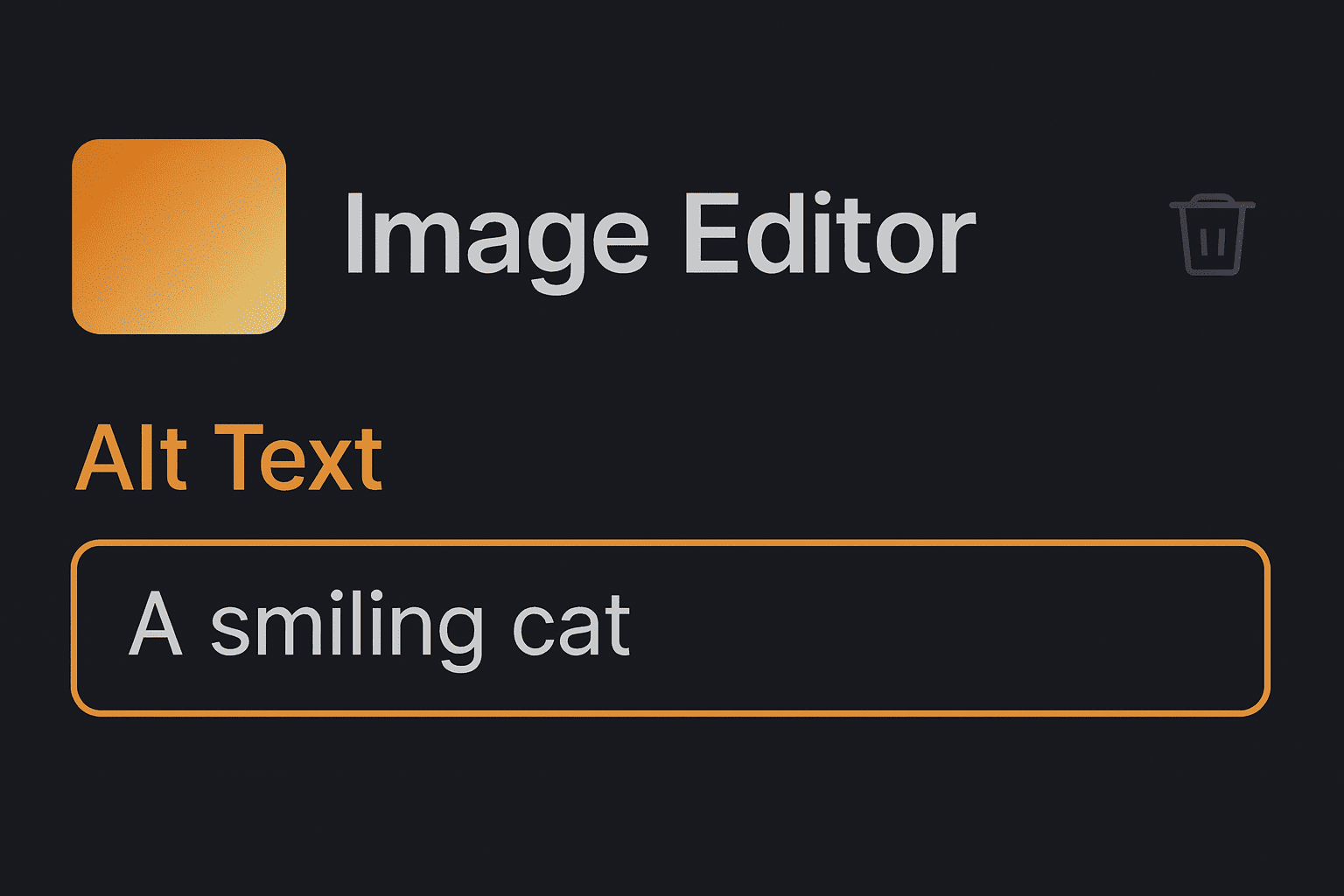
Do this Edit alt text directly in your CMS: - WordPress: Media Library or in-page Image block, set Alt Text. - Shopify: Products or Files, set Alt Text under Edit alt text. - Squarespace: Click the image, set Filename or Image Alt Text depending on template. - Webflow: Select the image, set Alt in the Asset panel.
Check - Write alt that is specific, short, and accurate. Aim for 8 to 12 words. Do not stuff keywords.
Why - Search engines and assistive tech both rely on clear alt text to understand images.
Step 5: Use this simple alt text formula
Do this Follow this pattern: [what the image is] + [key detail] + [page context].
Examples - Blue ceramic coffee mug with lid on wooden desk - Plumber installing PVC pipe under kitchen sink - April 2025 Brisbane roofing price chart
Check - Ask: Would this alt help someone who cannot see the image? If the image is only decorative, use alt .
Why - Good alt text describes function and meaning, not just the file name.
Step 6: Re-crawl to confirm fixes
Do this Run Screaming Frog again. Check Images > Missing Alt Text. The count should drop.
Check - Open a few fixed pages and view source to confirm alt attributes were saved correctly.
Why - A quick recheck proves your changes worked and catches any missed images.
Step 7: Prevent future misses
Do this Add alt="" text to your content checklist. Train your team to set alt text whenever uploading images. Schedule a monthly 5 minute crawl.
Check - New posts and products must pass a simple rule: no important images without alt.
Why - Small habits stop the problem from growing back.
Common mistakes to avoid
- Writing captions as alt="" text. Keep alt and captions separate. - Stuffing keywords. Describe the image first. One primary keyword is fine if natural. - Duplicating the same alt for different images. Be specific. - Using file names as alt. Rename files for storage if needed, but write proper alt.
What to do in minute 11
If you have extra time, fix file names for new uploads, compress heavy images, and add width and height to reduce layout shift.
Quick Win Summary Find missing alt on your high impact pages, crawl to catch the rest, write clear 8 to 12 word descriptions, and recheck. Ten minutes is enough to move the needle for SEO and accessibility today.