How To Build Keyword Map In Google Sheets | Module 3.3
Learn how to group and assign keywords to each page on your site so you know what content to create next.
Why You Need a Keyword Map
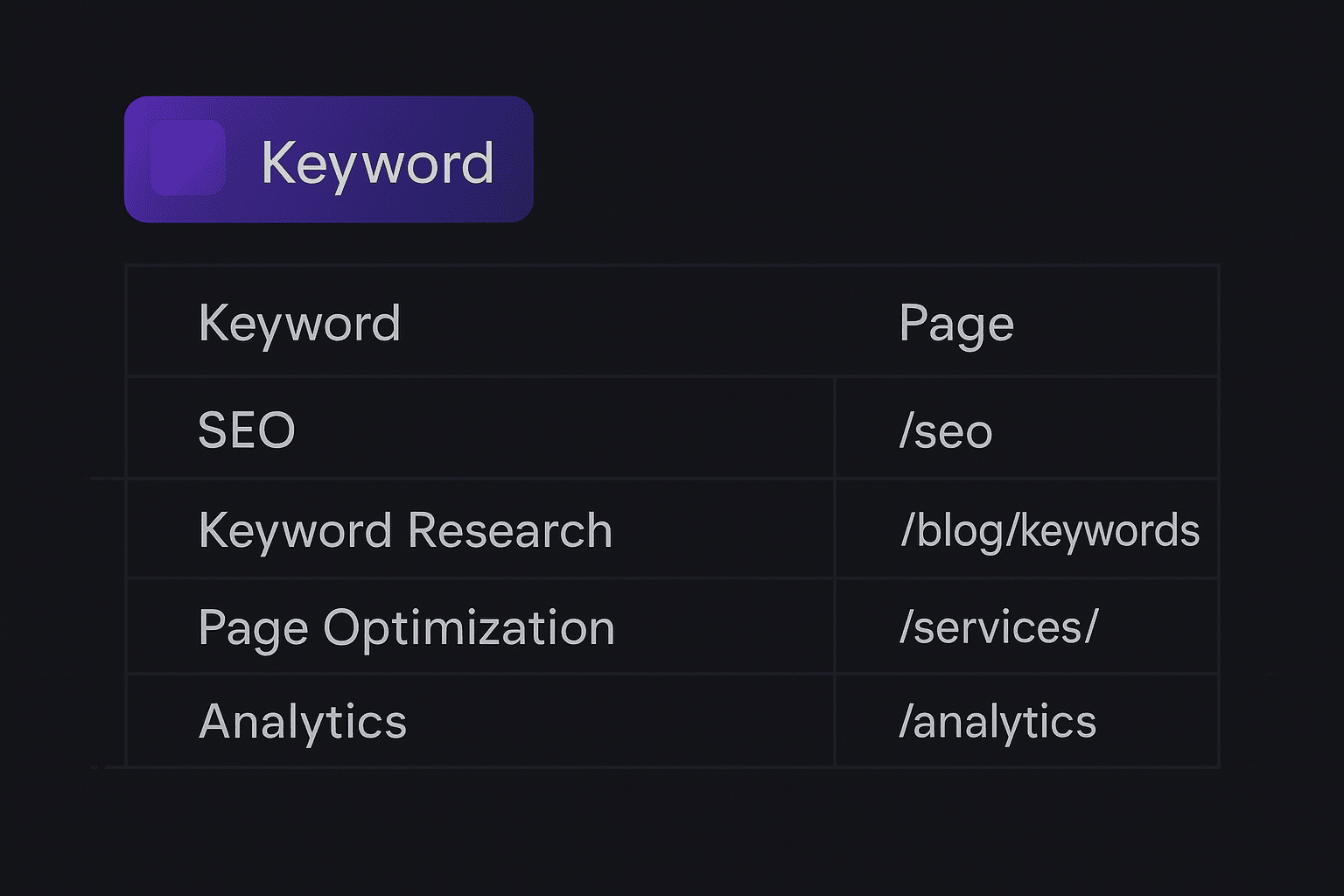
If you’ve ever wondered which keywords belong to which page—or caught yourself targeting the same keyword across multiple posts—a keyword map fixes that. It’s a simple document that tells you:
- Which keywords each page targets
- Where you have content gaps
- How to plan your next articles strategically
By building your keyword map in Google Sheets, you’ll have a free, shareable, and flexible tool for organising your SEO plan.
Here is a Keyword Map Google Sheet to get you Started
Step 1: Gather Your Keywords
Start by collecting all the keywords you want to target. You can export them from tools like:
- Google Search Console (actual search queries driving traffic)
- Ahrefs / Semrush / Ubersuggest (keyword discovery and competition data)
- SEO Minion (on-page keyword data from competitor pages)
Export these keywords into a spreadsheet or directly paste them into your Google Sheet.
Pro Tip: Include both short-tail (broad) and long-tail (specific) keywords to balance reach and conversion potential.
Step 2: Check Search Intent
Before mapping, you must understand what users really want when they search each keyword. Categorise every keyword by intent:
| Intent Type | Example Keywords | User Goal |
|---|---|---|
| Informational | how to build backlinks, SEO basics | Learn something |
| Navigational | Ahrefs login, Moz keyword tool | Find a brand/site |
| Transactional | buy SEO audit, hire SEO consultant | Purchase or book |
| Commercial Investigation | best SEO tools, top keyword software | Compare before buying |
Add a “Search Intent” column in your Sheet and tag each keyword accordingly.
Step 3: Group by Topic
Next, group related keywords under one core topic.
For example:
| Core Topic | Keywords |
|---|---|
| Keyword Mapping | keyword map template, SEO keyword mapping, Google Sheets keyword plan |
| On-Page SEO | meta title length, H1 best practices, keyword placement |
| Content Strategy | content clusters, internal linking, topical authority |
Each group will usually represent one main page or blog post idea.
Step 4: Assign Keywords to Pages
Now that you have your topics, match them to existing or planned pages.
Add these columns to your Sheet:
- Page URL (or Planned URL)
- Primary Keyword
- Supporting Keywords
- Search Intent
- Search Volume
- Content Type (Blog, Service, Landing, etc.)
This instantly shows what content exists, what’s missing, and where you might have overlapping targets.
Step 5: Identify Gaps and Overlaps
Filter or sort by your Primary Keyword column to spot duplication.
- If multiple URLs target the same term → merge or consolidate.
- If a keyword has no assigned page → add it to your content roadmap.
Goal: Each primary keyword should have one dedicated page.
Step 6: Prioritise for Quick Wins
Add a “Priority” column to identify high-impact opportunities.
Use a simple scoring system:
| Factor | Low (1) | Medium (2) | High (3) |
|---|---|---|---|
| Search Volume | <100 | 100–500 | 500+ |
| Keyword Difficulty | 60+ | 30–59 | <30 |
| Business Relevance | Low | Medium | High |
Then calculate a total priority score. Focus on high relevance + low difficulty for your next posts.
Step 7: Use the Free Google Sheets Template
To save time, start with the ready-made Keyword Map Template. It includes:
- Pre-filled columns for search intent, priority, and assigned URLs
- Conditional formatting to highlight duplicates
- Drop-downs for easy filtering
Step 8: Keep It Updated
Revisit your keyword map monthly or after major content updates.
- Add new keyword opportunities
- Mark pages that have been published
- Update metrics (search volume, clicks, impressions)
This ensures your SEO plan stays current and data-driven.
Final Thoughts
A keyword map is more than just a spreadsheet—it’s your SEO command centre. It helps you see exactly where your content stands, what’s missing, and what to write next.
With a clear structure and the free Google Sheets template, you’ll spend less time guessing and more time creating content that ranks.